
Zoom Resource Guide
Everything you need to join a live Zoom session with confidence
ABOUT THIS GUIDE
This resource is published by Spectral Vision as a free public reference for anyone attending a live Zoom session. Whether you are joining a course, a meeting, or a consultation, this guide walks you through everything from downloading Zoom to troubleshooting the most common issues. No technical experience required.
SECTION 1 — WHAT IS ZOOM?
THE BASICS
What Is Zoom and How Does It Work?
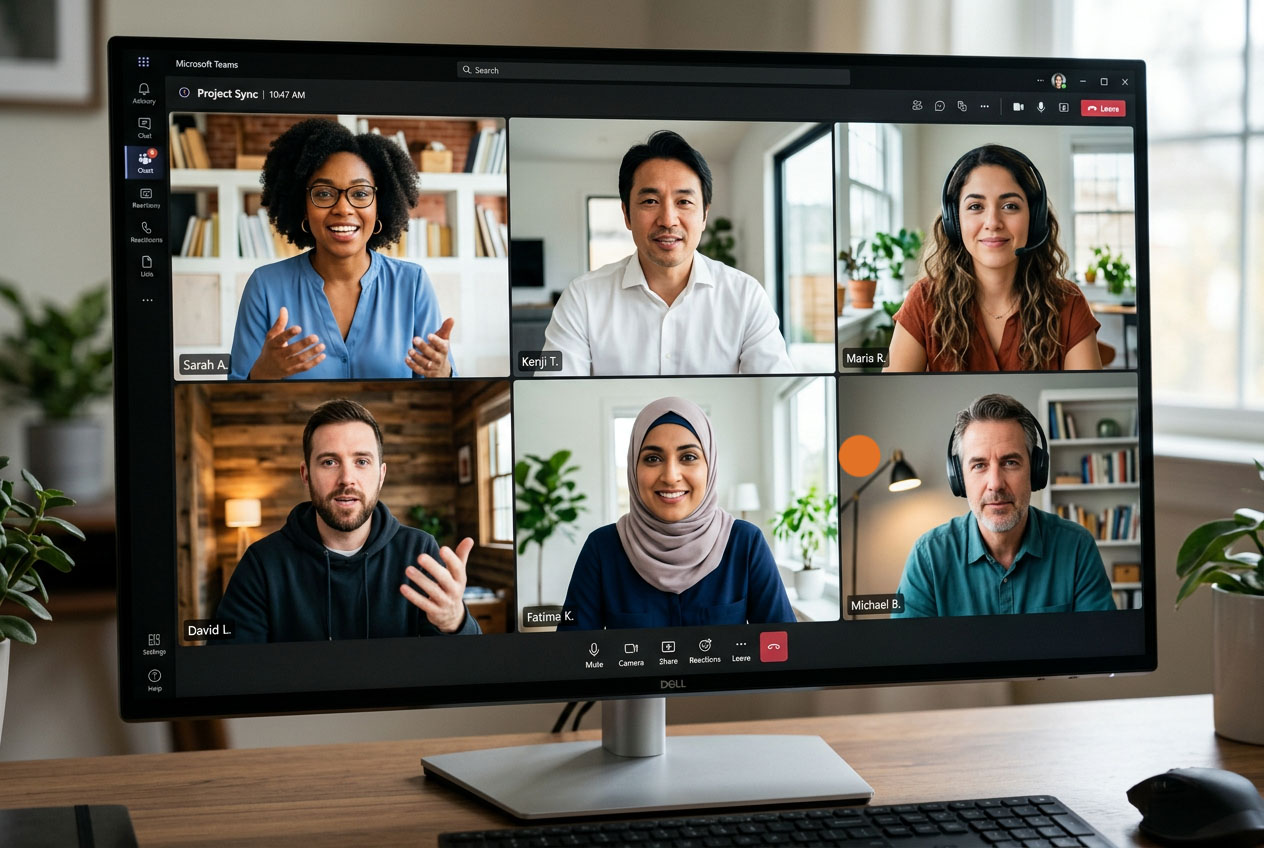
Zoom is a free, easy-to-use video platform used by millions of people worldwide for live meetings, classes, webinars, and consultations. If you can make a phone call, you can use Zoom. You do not need any technical experience to join a session.
Live Video Sessions
Zoom connects you face-to-face with your host, instructor, or colleagues in real time over the internet. You can see, hear, and interact with everyone in the session just as you would in a physical room.
Join With a Single Link
You do not need to search for sessions or memorize meeting IDs. Your host sends you a unique invite link by email. Click it at your session time and Zoom handles the rest automatically.
Works on Any Device
Zoom runs on Windows and Mac computers, iPhones, Android phones, and tablets. A laptop or desktop gives you the best experience, but any device with a camera and microphone will work.
Always Free to Join
Downloading Zoom and joining sessions is completely free. You do not need a paid Zoom subscription or account of any kind to attend a session someone has invited you to.
SECTION 2 — WHAT YOU NEED TO JOIN
BEFORE YOU BEGIN
Device, Internet, and Software Requirements
Review this section before your session date. Having the right setup in place avoids the most common causes of connection problems.
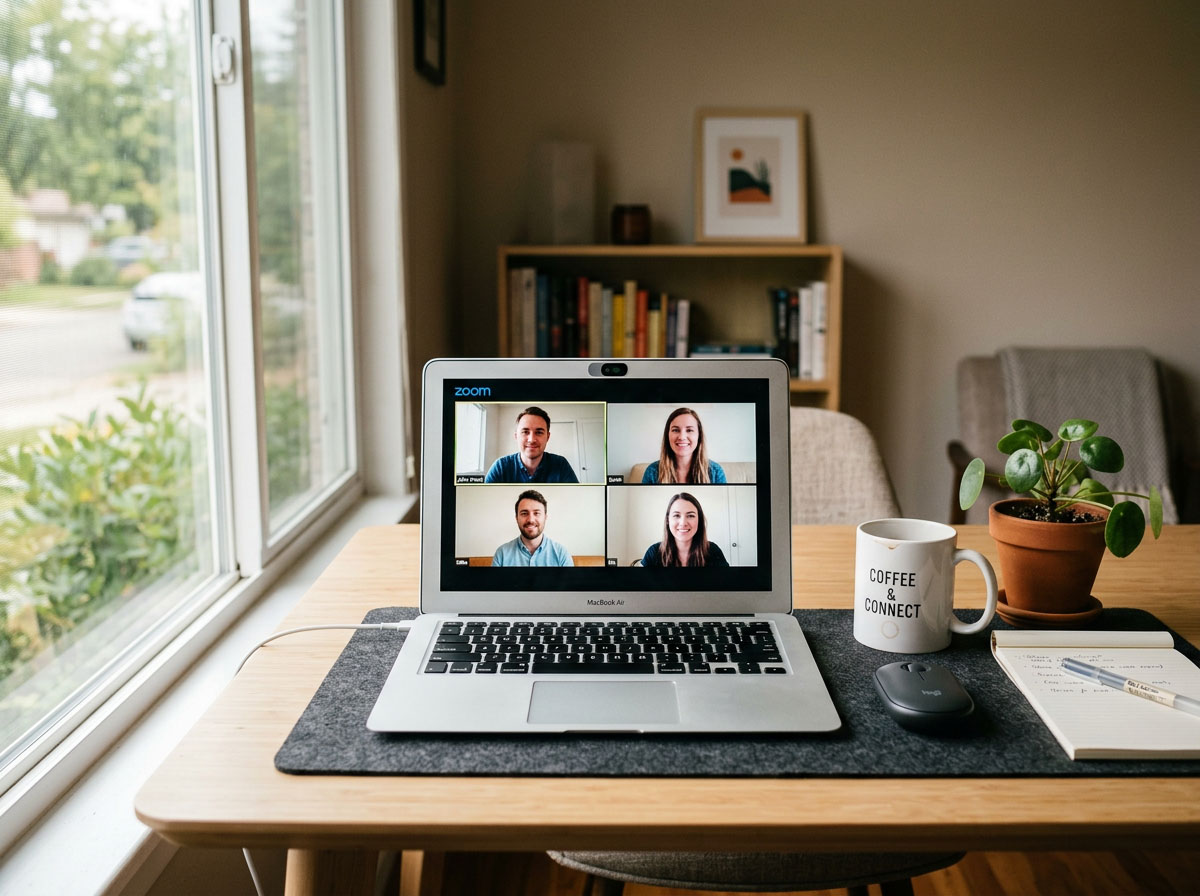
Laptop or Desktop Computer (Recommended)
- Windows 7 or later, or macOS 10.9 or later
- Working webcam — built-in or external USB camera
- Working microphone — built-in laptop mic or a headset
- Stable broadband internet connection
- Zoom Desktop Client installed and updated to the latest version (free download)
- An up-to-date web browser such as Chrome or Firefox as a backup option
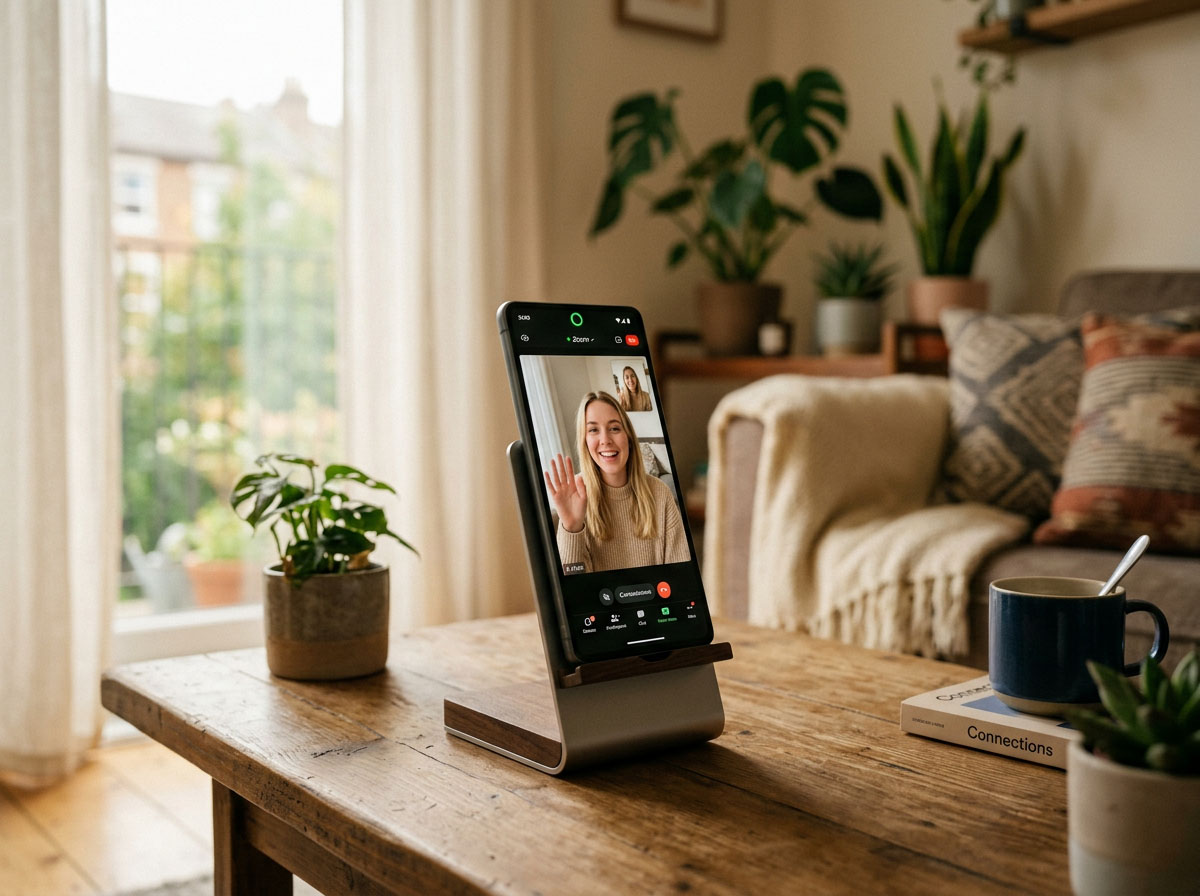
Smartphone or Tablet
- iPhone running iOS 14 or later
- Android device running version 5.0 or later
- Front-facing camera in working order
- Microphone access permission granted to Zoom in your device settings
- Zoom app installed from the Apple App Store or Google Play Store (free)
- Stable Wi-Fi connection — cellular data alone is not recommended for long or important sessions
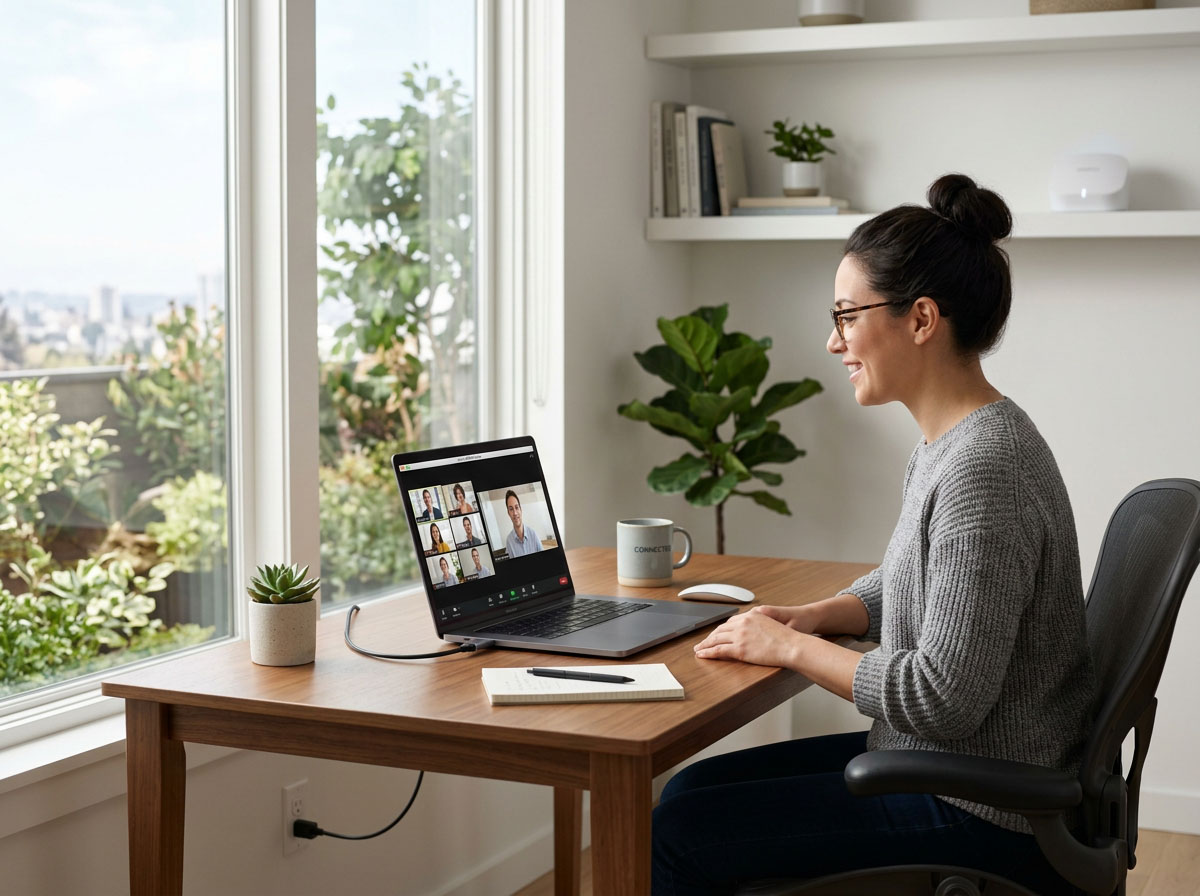
Internet Connection
- Minimum 3 Mbps download speed and 3 Mbps upload speed
- A wired ethernet connection is the most reliable option available
- Strong, stable Wi-Fi works well when signal is consistent
- Avoid public or shared Wi-Fi for sessions requiring privacy or long duration
- Close all other streaming apps and browser tabs during your session to maximize bandwidth
- Test your connection speed for free at fast.com before your session day
SECTION 3 — SETUP GUIDE
STEP-BY-STEP INSTALLATION
How to Download and Install Zoom
Follow the instructions below for your device type. The full process takes less than five minutes and only needs to be completed once.
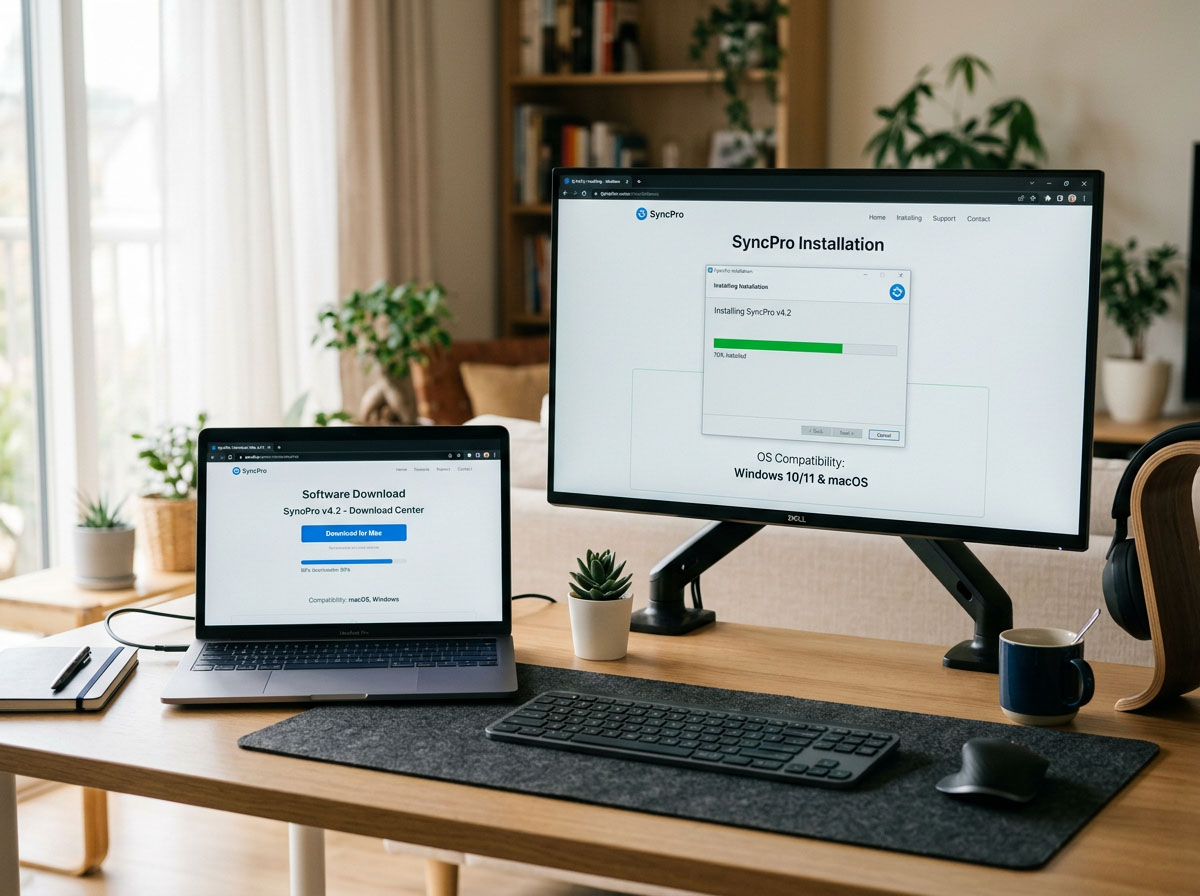
For Laptop or Desktop — Windows and Mac
- Visit the Zoom Download Center
Open your browser and go to zoom.us/download — this is the official Zoom download page. Do not download Zoom from any other source. -
Download Zoom Desktop Client
Click the blue Download button under Zoom Desktop Client. Your file will begin downloading automatically to your Downloads folder. -
Open the Downloaded File and Install
Find the downloaded file in your Downloads folder and double-click it. Follow the on-screen installation prompts. The process takes about one minute. -
Open Zoom
Once installed, open the Zoom app. You do not need to create an account or sign in to join a session you have been invited to. -
Allow Camera and Microphone Access
When Zoom requests access to your camera and microphone, click Allow. Without these permissions you will not be able to see or be seen in your session.
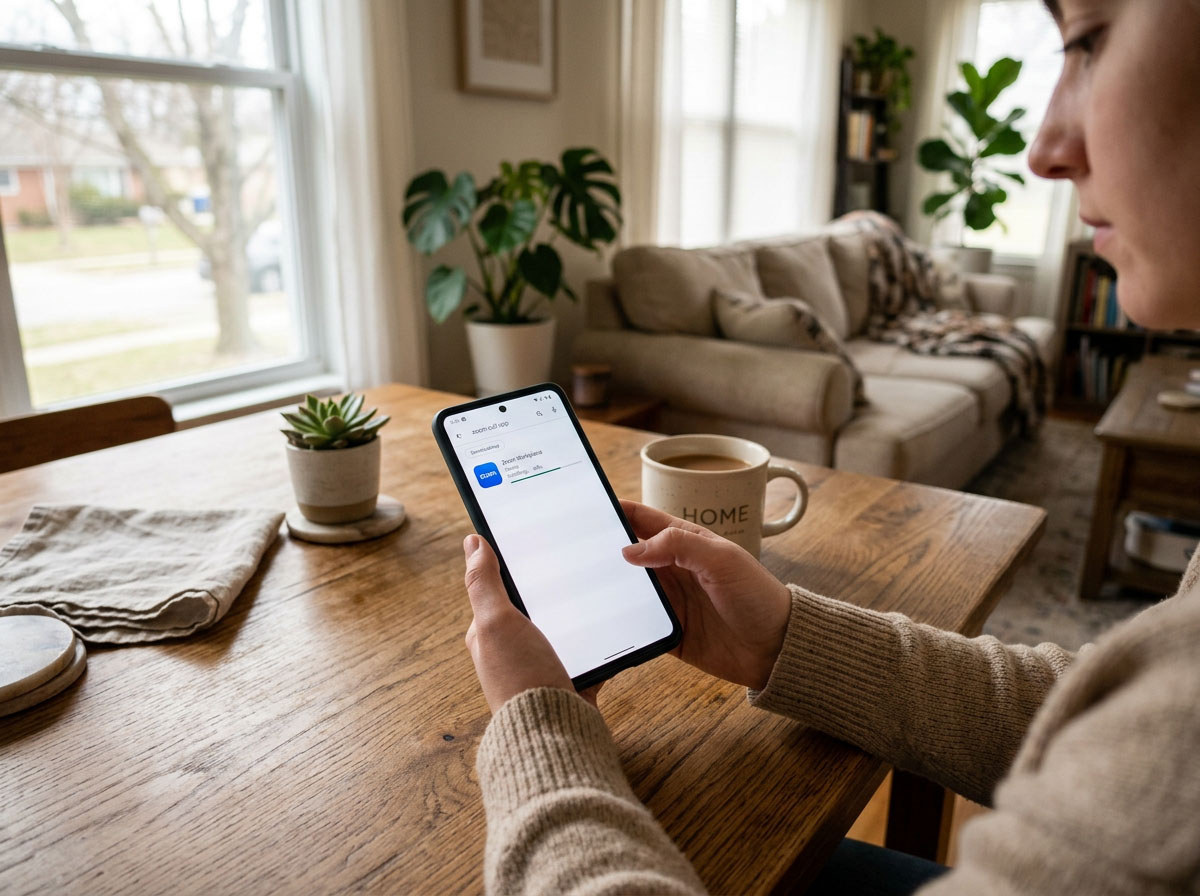
For iPhone or Android
-
Open Your App Store
On iPhone or iPad, open the Apple App Store. On Android, open the Google Play Store. -
Search for Zoom Workplace
Type Zoom Workplace in the search bar. It was formerly called Zoom Cloud Meetings. Select the official app published by Zoom Video Communications. -
Tap Get or Install
Tap Get on Apple devices or Install on Android. The app is completely free and will download and install automatically. -
Allow Camera and Microphone Access
When the app opens, grant permission for Zoom to access your camera and microphone. These permissions are required to participate in any live session. -
Join Using Your Invite Link
When it is time for your session, tap the invite link in your email. Zoom will open automatically and connect you to the session.
SECTION 4 — TEST YOUR CONNECTION
BEFORE YOUR SESSION
Run a Full Test at Least 15 Minutes Before You Join
Testing your setup before your session date removes nearly all technical surprises. Zoom provides a free, private test room that is available to anyone at any time. Use it.
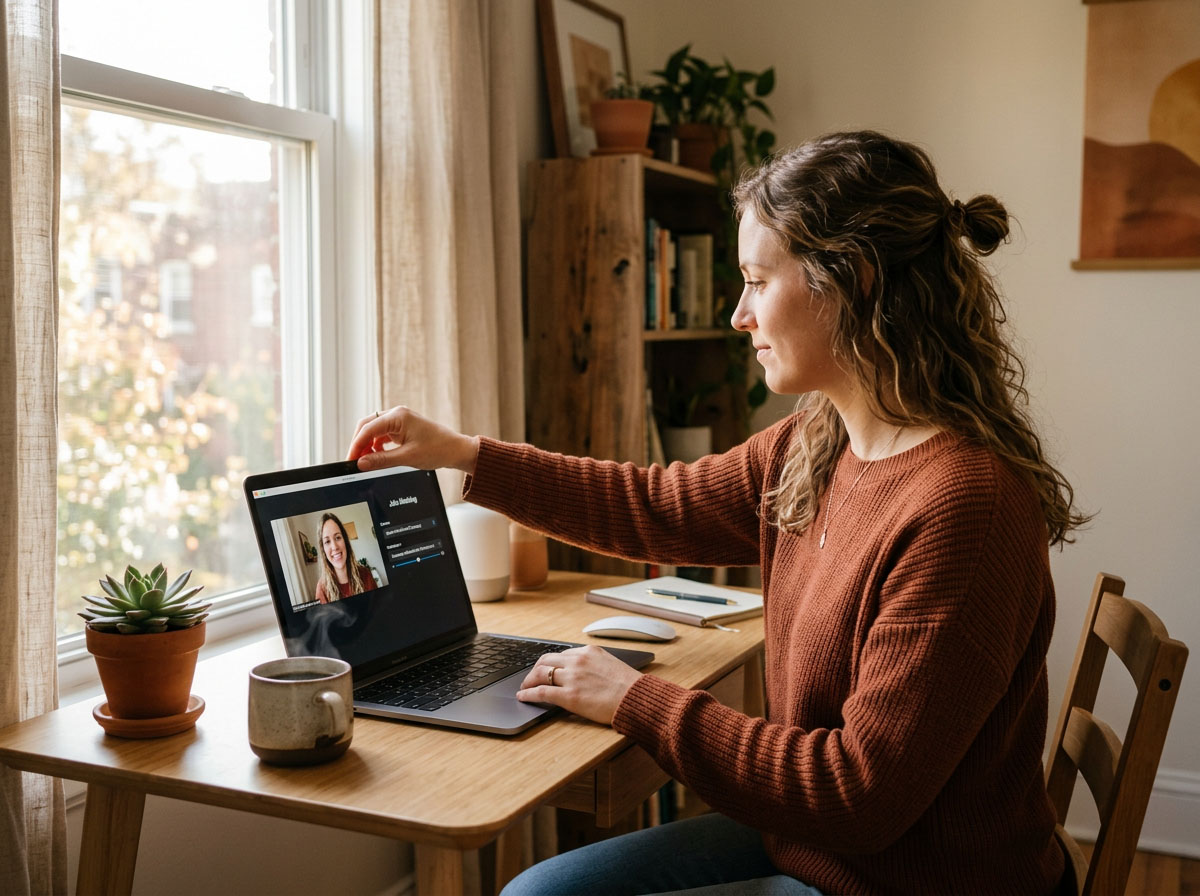
How to Run a Zoom Test Meeting
- Open your browser and go to zoom.us/test — Zoom’s free official test tool. No sign-in required.
- Click the blue Join button. Zoom opens and places you in a private test session. No one else can see or hear you.
- Test your speaker. A ringtone plays. If you can hear it clearly, click Yes. If not, click No and use the dropdown to select a different audio output device.
- Test your microphone. Speak normally. Zoom records a short clip and plays it back. Confirm you can hear yourself clearly, then click Yes.
- Test your camera. A live preview of your camera appears on screen. Confirm your face is clearly visible and well-lit. Click Start Video if the preview does not appear automatically.
TIP: If anything fails during your test, refer to Section 6 — Troubleshooting for step-by-step fixes before your session day. Do not wait until your session starts to discover a problem.
SECTION 5 — PRE-SESSION CHECKLIST
ON THE DAY OF YOUR SESSION
Confirm Each Item Before You Join
Work through this checklist on the day of your session. Every item below is a documented cause of common Zoom problems. Five minutes now saves a disrupted session later.
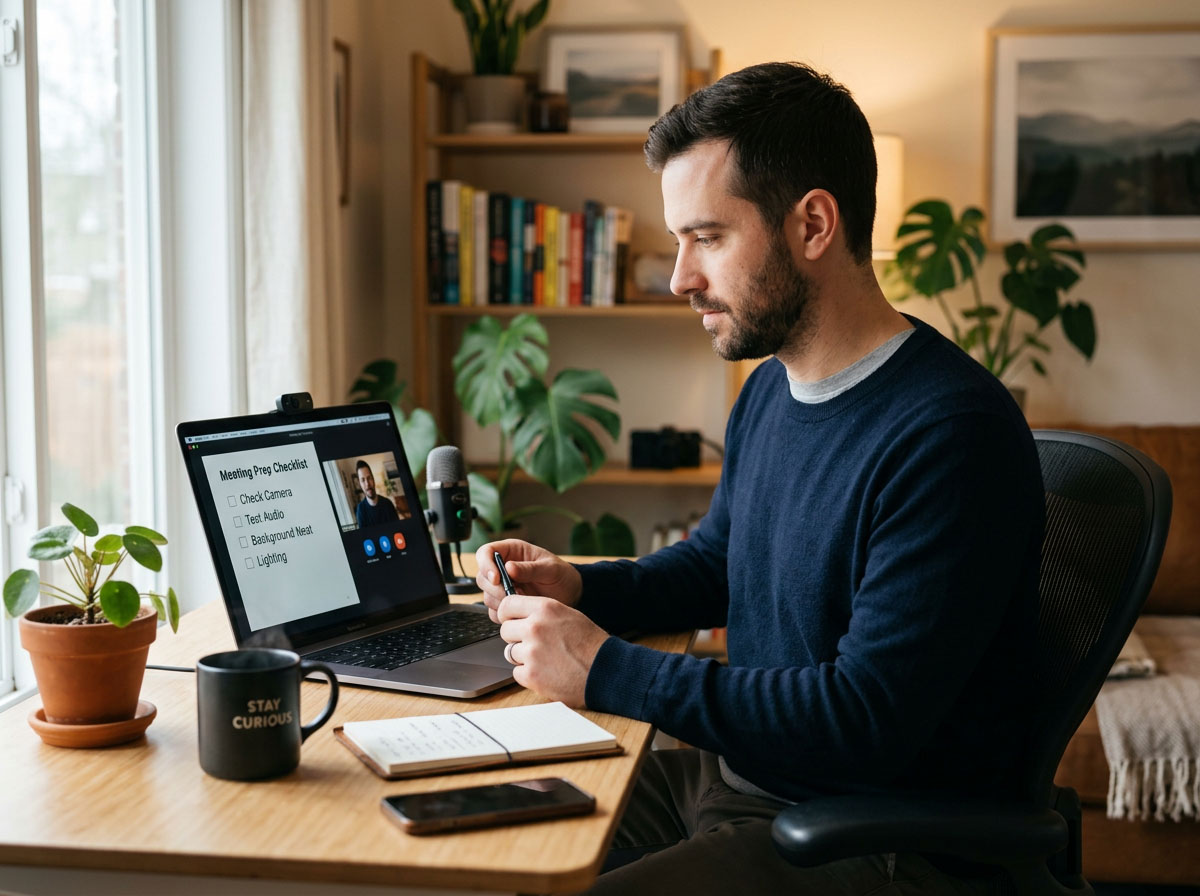
- Zoom app is updated to the latest version — click your profile picture in Zoom and select Check for Updates
- Camera turns on and displays a clear, well-lit image of your face
- Microphone picks up your voice clearly — no echo, no distortion, no background hum
- Speakers or headphones play audio cleanly without cutting out or crackling
- Internet connection is stable — test at fast.com and confirm at least 3 Mbps in each direction
- Your invite link opens Zoom correctly without error messages
- You are sitting with a light source in front of you, not behind you
- Your device is plugged into power or is fully charged
- All other apps, browser tabs, and streaming services are closed
- You are in a quiet, private space with minimal background noise for the full session duration
- A headset or earbuds are connected and selected as the audio device in Zoom settings
- You are ready to join the session at least five minutes before the scheduled start time
SECTION 6 — TROUBLESHOOTING GUIDE
COMMON ISSUES AND FIXES
Fixes for the Six Most Common Zoom Problems
Find your issue below and follow the steps in order. The majority of Zoom problems are resolved in under two minutes with one of these fixes.
No one can hear me — My microphone is not working
- Check for the mute icon. Look at the bottom-left corner of Zoom for a microphone icon. A red line through it means you are muted. Click it to unmute.
- Select the correct microphone. Click the small arrow next to the microphone icon and choose your microphone from the dropdown list.
- Check device permissions. Open your device’s system settings and confirm that Zoom has been granted access to your microphone.
- If you are using a headset, unplug it, wait five seconds, and plug it back in. Then re-select it in Zoom’s audio settings.
- Restart the Zoom app completely and rejoin using your invite link.
- Quick shortcut: Press and hold the spacebar in Zoom to temporarily unmute yourself while you are speaking.
My camera is not working — Black screen or no video
- Click Start Video in the bottom-left corner of Zoom if your camera appears to be off.
- Select the correct camera. Click the small arrow next to the video icon and choose your camera from the dropdown.
- Close any other application that may be using your camera at the same time, such as FaceTime, Microsoft Teams, or Skype.
- Check your device’s privacy settings to confirm Zoom has been granted access to the camera.
- On a laptop, confirm the physical camera shutter or privacy cover is fully open and not blocking the lens.
- Restart the Zoom app completely and rejoin using your invite link.
Zoom is freezing or dropping — Poor connection quality
- Move your device closer to your Wi-Fi router, or connect via an ethernet cable for the most stable connection possible.
- Close all other browser tabs, streaming services, video apps, and background applications.
- Ask anyone else on your network to pause streaming or large downloads while your session is in progress.
- Turn off your video temporarily by clicking Stop Video. This alone reduces bandwidth demand significantly and often resolves freezing.
- Run a speed test at fast.com. You need a minimum of 3 Mbps in both directions for a stable video session.
- Restart your router by unplugging it, waiting 30 seconds, and plugging it back in.
My invite link is not working
- Copy and paste the full link manually into your browser rather than clicking it. Long links sometimes break across two lines in email clients.
- Try a different browser. If Chrome is not working, try Firefox, Safari, or Edge.
- Confirm the session has already started. Invite links only become active once the host opens the meeting.
- Check your inbox for a reminder email that may contain an updated or corrected link.
- Contact the person who sent your invitation and ask them to resend the link directly.
I cannot hear anyone — No audio from the session
- When you first join a session, Zoom prompts you to select how to connect to audio. Select Join with Computer Audio. This step is the most commonly missed step for new users.
- Confirm your device volume is turned up and that it is not set to silent, vibrate, or do-not-disturb mode.
- Click the small arrow next to the microphone icon and select the correct speaker output device from the list.
- Unplug and re-plug your headphones or external speakers, then re-select them in Zoom audio settings.
- Leave the session and rejoin using your invite link. When prompted again, select Join with Computer Audio.
I am stuck in the waiting room — Not being admitted
- The host must manually admit you. Stay in the waiting room and wait. Do not leave and rejoin repeatedly as this resets your place in the queue.
- Confirm your Zoom display name matches your registered name. To rename yourself: click Participants, find your name, and click Rename.
- Make sure your camera is on and your face is clearly visible when the host reviews the waiting room.
- If you have been waiting more than five to ten minutes, contact the session organizer directly by phone or email.
SECTION 7 — PRO TIPS FOR A SMOOTH SESSION
BEST PRACTICES
Nine Tips That Make Every Session Better
These are the habits of people who never have Zoom problems. Follow them before every session and you will be the most reliable person in the room.

1. Set Up in a Quiet Space
Choose a room with minimal background noise. Close doors and windows. Let others in your home know you are in a session and not to be disturbed.

2. Face Your Light Source
Sit facing a window or a lamp. A light source behind you creates a silhouette effect that makes you very difficult to see on screen.
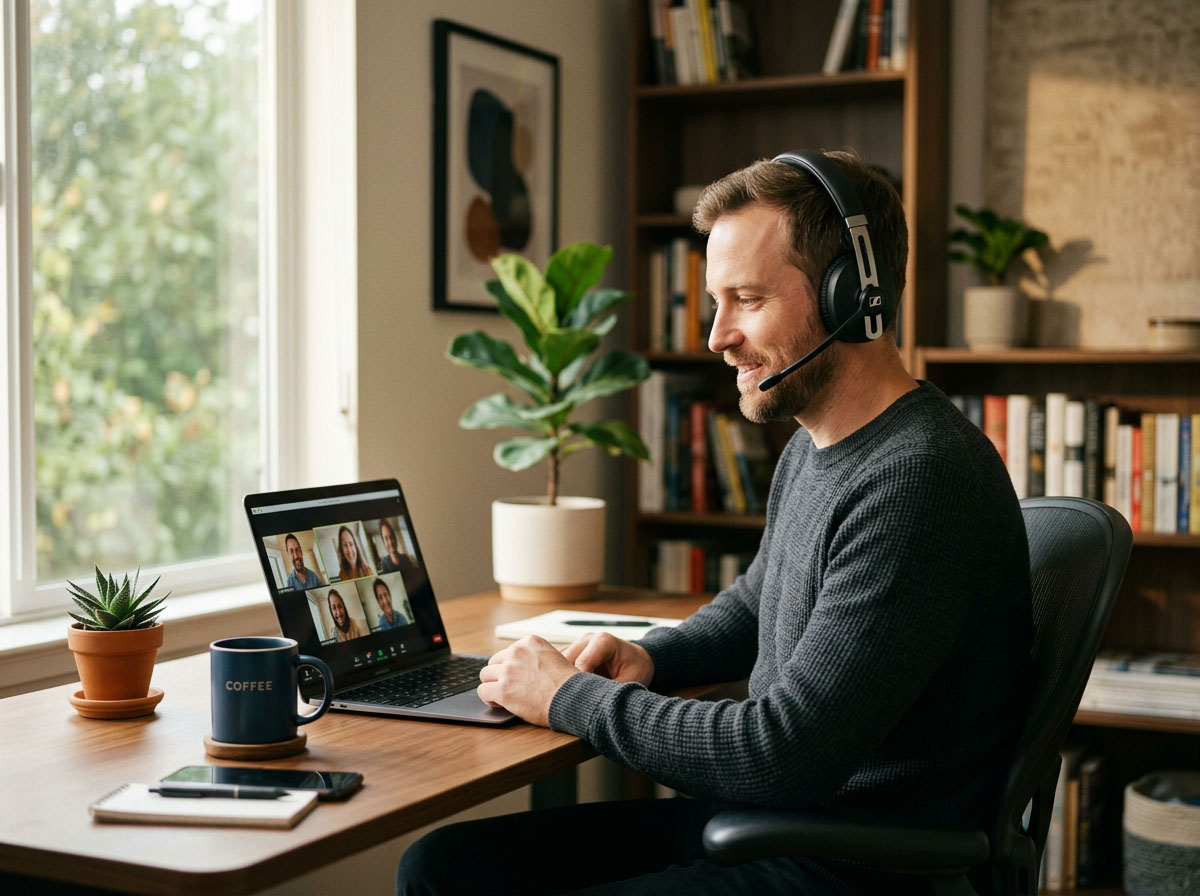
3. Use Earbuds or a Headset
Any earbuds with a built-in microphone improve audio quality for everyone in the session. Built-in laptop speakers and microphones often create echo.

4. Keep Your Device Plugged In
Plug into power before your session begins. Long sessions drain batteries faster than expected. Running out of power mid-session is entirely preventable.
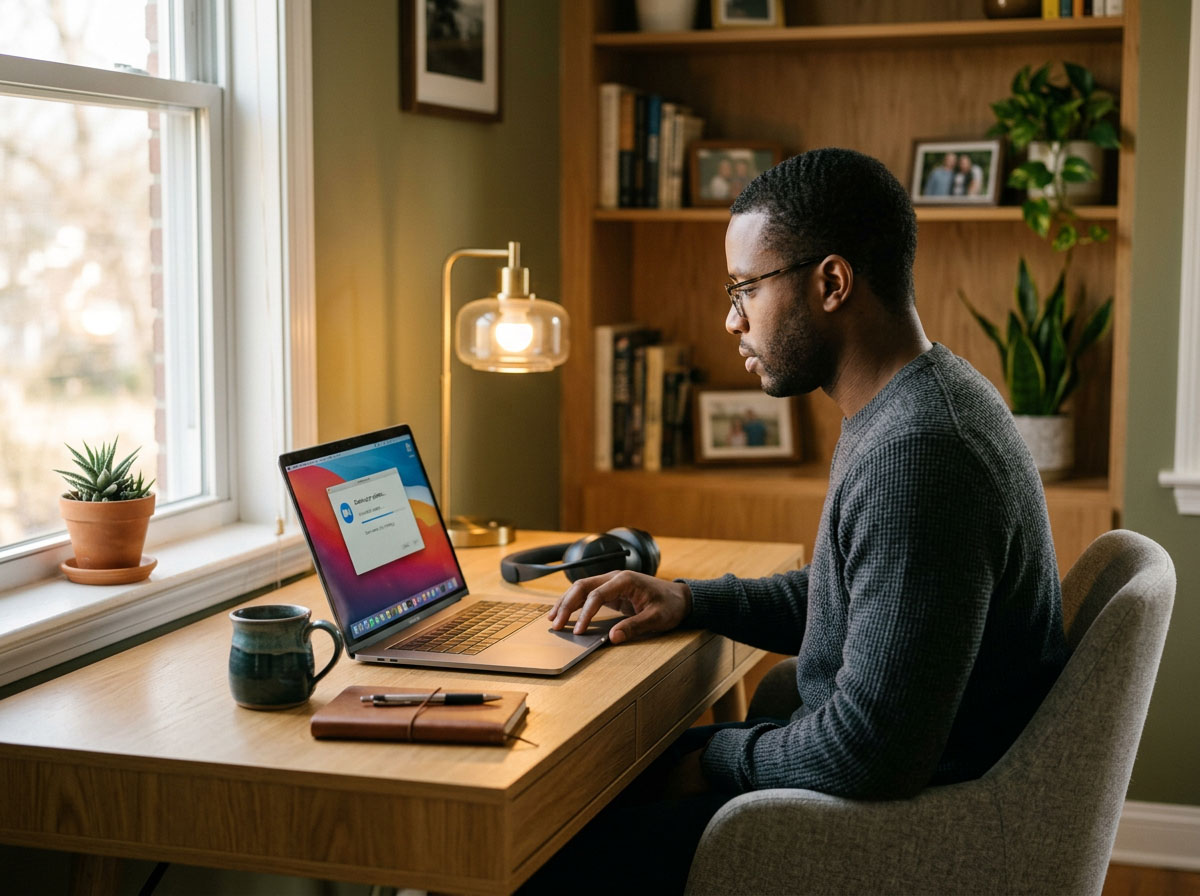
5. Update Zoom Before You Join
Click your profile picture in Zoom and select Check for Updates before your session. Running an outdated version is one of the most common causes of unexpected problems.

6. Join Early
Join the waiting room at least five minutes before the scheduled start time. This gives you time to fix any last-minute audio or video issues without delaying the session.

7. Keep Your Camera On
Keeping your camera on builds trust and signals engagement. Many hosted sessions require cameras to remain on throughout. Check with your host before turning it off.
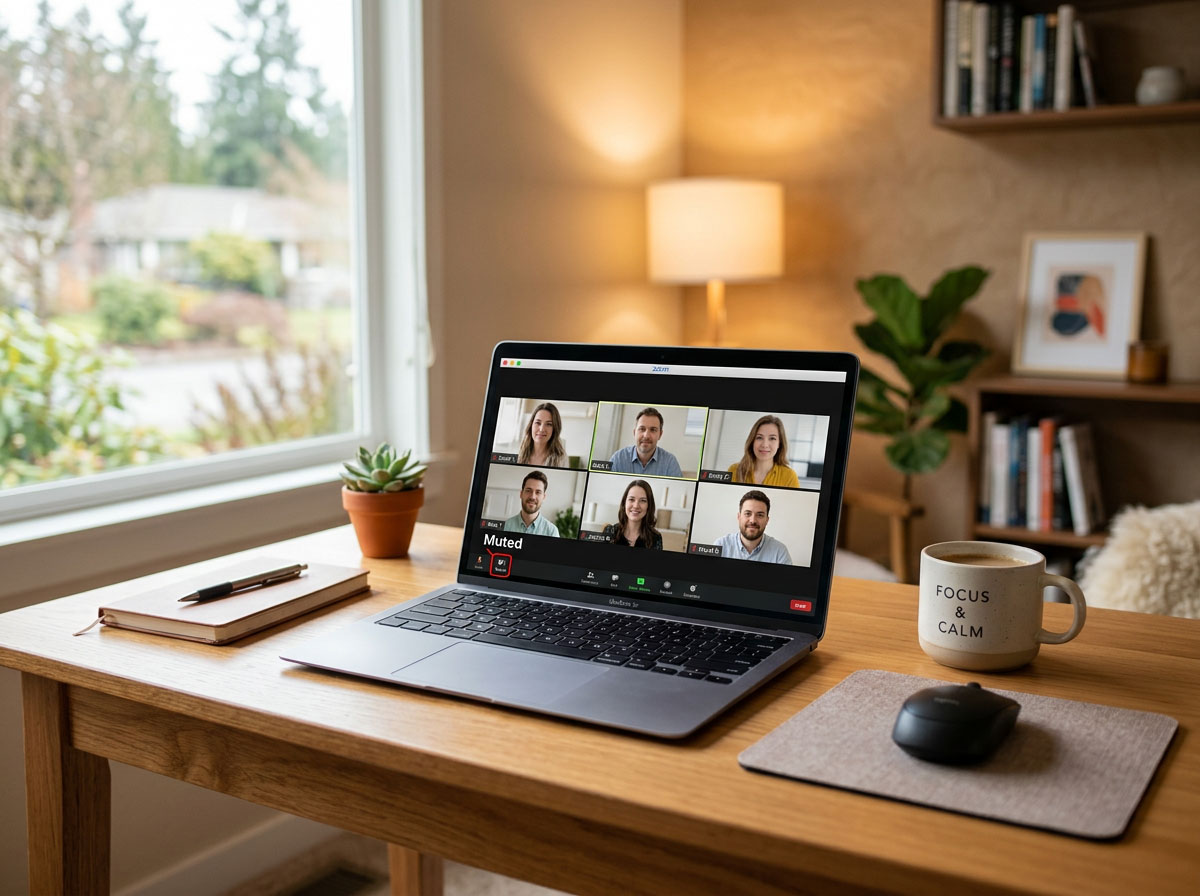
8. Mute When Not Speaking
Mute your microphone when you are not speaking. Background noise from an unmuted participant is one of the most disruptive problems in any group session.

9. Use Chat for Questions
Join the waiting room at least five minutes before the scheduled start time. This gives you time to fix any last-minute audio or video issues without delaying the session.
SECTION 8 — ZOOM GLOSSARY
QUICK REFERENCE
Every Zoom Term You Will Encounter — In Plain English
New to Zoom or just want to know what something means? Every term below is defined in plain language with no technical jargon.
| Term | Plain-English Definition |
|---|---|
| Host | The person who created and controls the meeting. The host can admit or remove participants, mute attendees, share their screen, and end the session. |
| Co-Host | A participant the host has given shared control over the meeting, such as admitting people from the waiting room or managing mutes. |
| Waiting Room | A virtual holding area where participants wait until the host manually admits them. Stay in the waiting room and wait — do not leave and rejoin repeatedly. |
| Mute / Unmute | Muting turns off your microphone so others cannot hear you. Unmuting turns it back on. Mute yourself when you are not speaking to reduce background noise for everyone. |
| Start / Stop Video | Starts or stops your camera from transmitting your image. Starting video means others can see you. Stopping video means your camera turns off and participants see your name instead. |
| Participants Panel | A sidebar list of everyone currently in the session. Open it by clicking Participants in the bottom toolbar. You can see who is muted, who has their camera on, and who is waiting. |
| Chat Panel | A text window where participants can send messages visible to everyone in the session. Useful for asking questions without interrupting the speaker. |
| Invite Link | A unique web address sent to you by email or message. Clicking it opens Zoom and connects you directly and automatically to a specific session. |
| Meeting ID | A unique 9- or 10-digit number identifying a specific meeting. You can type this into the Zoom app to join manually if your invite link is not working. |
| Passcode | An optional security code required to enter some sessions. If your session has one, it will be included in your invite email alongside the link. |
| Bandwidth | The volume of data your internet connection can send and receive per second. Poor bandwidth means a smoother, higher-quality Zoom session with less freezing. |
| Screen Share | A feature that lets the host or a permitted participant show their computer screen to everyone in the session. Commonly used to display presentations or documents. |
| Reactions | Quick emoji responses such as a thumbs up or raised hand that participants can send without interrupting the session. Found in the Reactions button in the toolbar. |
| Rename | Changes your display name visible to other participants. Access it by clicking Participants, finding your name, and selecting Rename. |
| Leave Meeting | The button to exit the session. Click it only when the session has concluded or you have been given permission to leave early. |
| Virtual Background | A feature that replaces your real background with an image or video during the session. Best avoided in professional or formal sessions where your real environment is expected. |
Conversion-Engineered Professional WordPress Web Design
High-ROI Google Ads Campaign Management
Intelligent AI-Powered Business Automation
Revenue-Generating Email Nurture Systems
Strategic Brand Positioning & Authority Building
Premium Content Strategy & Implementation
Google Business Profile Recovery & Optimization
Google Maps Visibility Domination
Ecommerce Platform Development & Optimization
 Home Services SEO
 Auto Repair SEO
 Mobile Detail SEO
 Real Estate SEO
 Medical Spa SEO
 Medical Device SEO
 Financial Services SEO
 Addiction Recovery SEO
 Restaurant SEO
 Personal Trainer SEO
 Cannabis SEO
 Charity SEO Philanthropy
 Web Design
 Web Hosting
 Social Media Marketing
 Influencer Marketing
 Spectral Social Suite Pro
 Spectral Connect
 Email Marketing
 Google Ads
  Ecommerce
 Brand Packaging & Consulting
 Google My Business Reinstatement
 Small Business Generative AI Solutions